User guides
| Site: | mooc.samk.fi |
| Course: | mooc.samk.fi |
| Book: | User guides |
| Printed by: | |
| Date: | Thursday, 8 October 2026, 6:38 AM |
Description
1.1. MOOC registration
Please start taking note of the following:
- When creating your user account, make sure you use an email address that you can access for the duration of the project or course.
- If you have Google, LinkedIn or Microsoft consumer account such as Outlook.com or Hotmail, you can sign in with it, and you don't have to create local user account.
- If you have SAMK-ID, you can use it. Do not create local user account
Creating new account
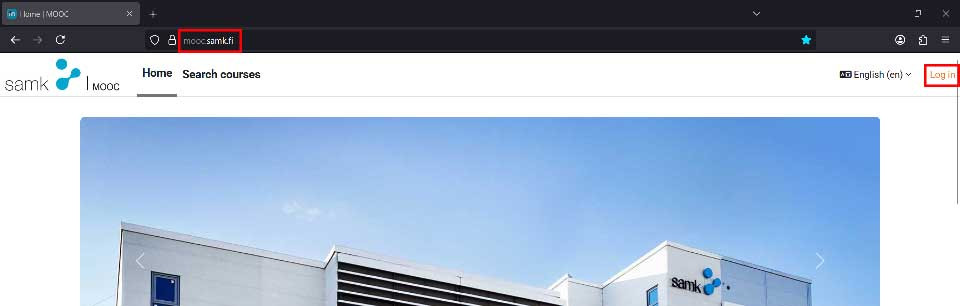
Go to address https://mooc.samk.fi/login/signup.php and witch language to English (en), if needed. To start creating a user account, click “Login” from right upper corner of the page.
Enter your username, password, and email address twice and your first and last name. Finally, click “Create new account”.
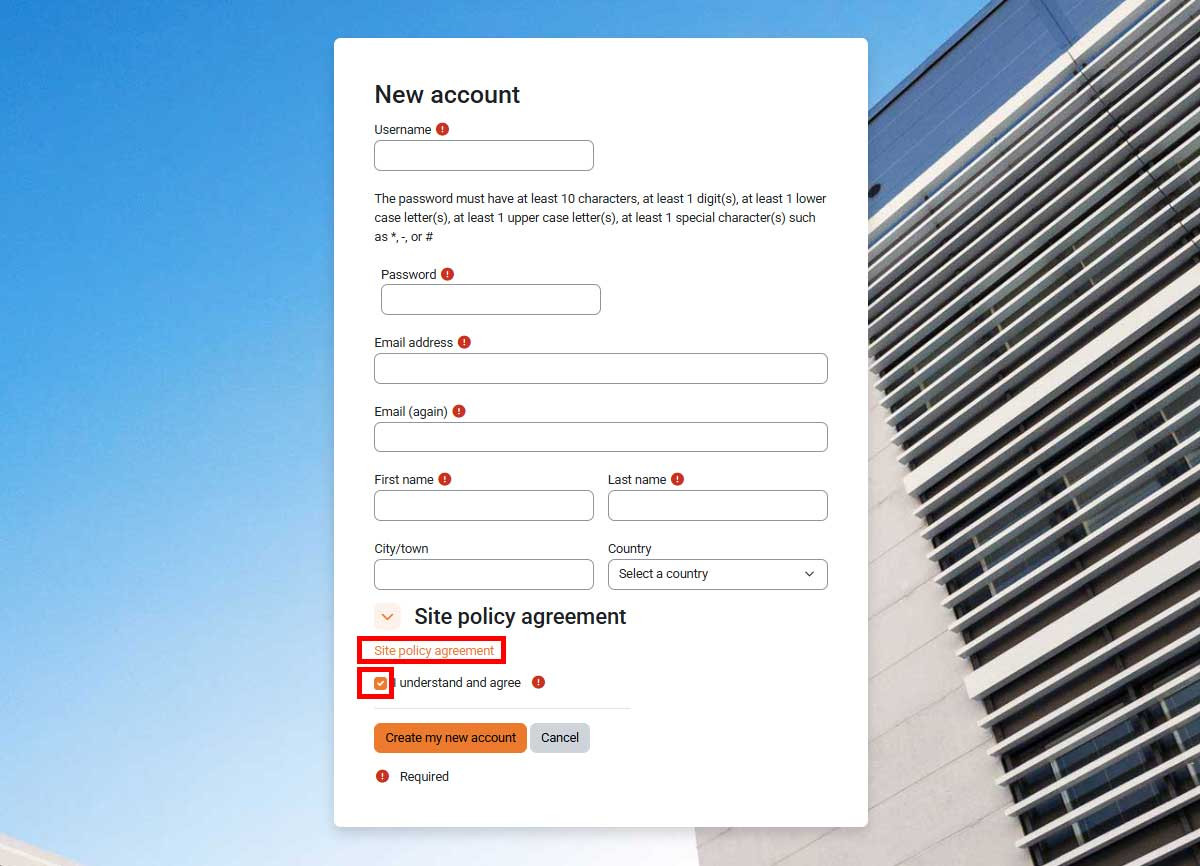
Read carefully through the Site policy agreement, check the I understand and agree check box and click Create my new account button
Account confirmation
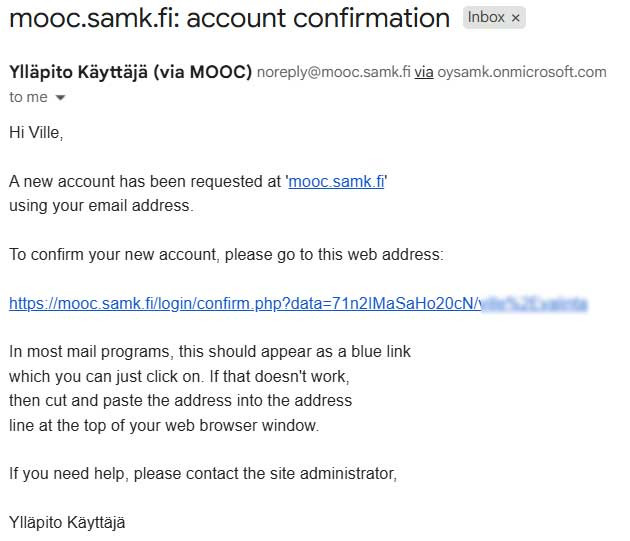
Once you have created a username, you will receive a confirmation message at the email address you provided. To activate your account, click on the link in the email you receive.
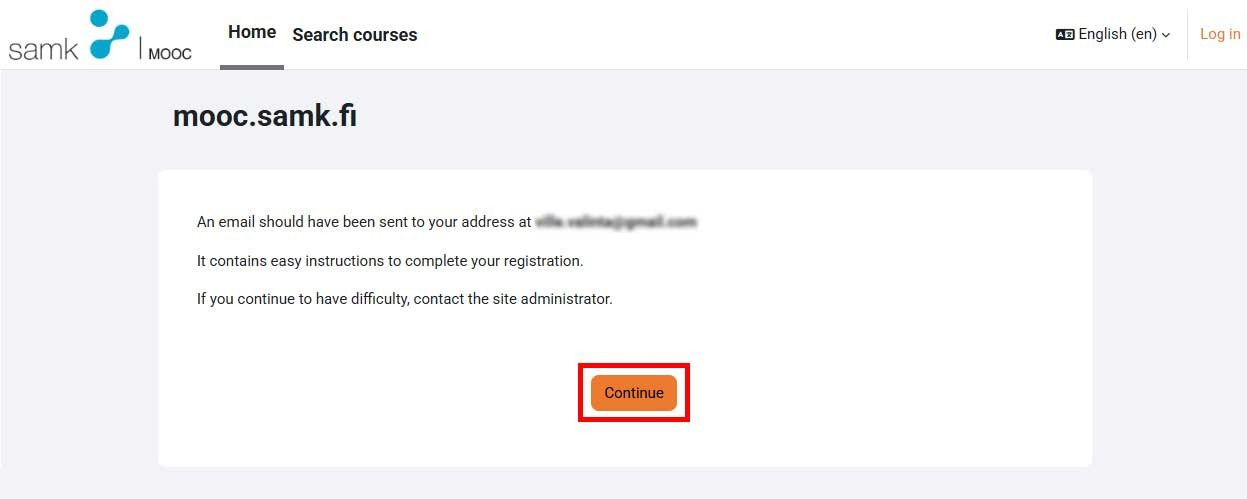
If You don’t receive that email message in 5 minutes from Your registration, please send email to address esamk.support@samk.fi. And PLEASE SEND IT FROM THE SAME EMAIL ADDRESS YOU HAVE BEEN USING SO FAR. Click the confirmation link from the email message.
After you have clicked on the user account confirmation link you received in your email, your browser will be redirected to a page where you will be notified that your username registration has been accepted.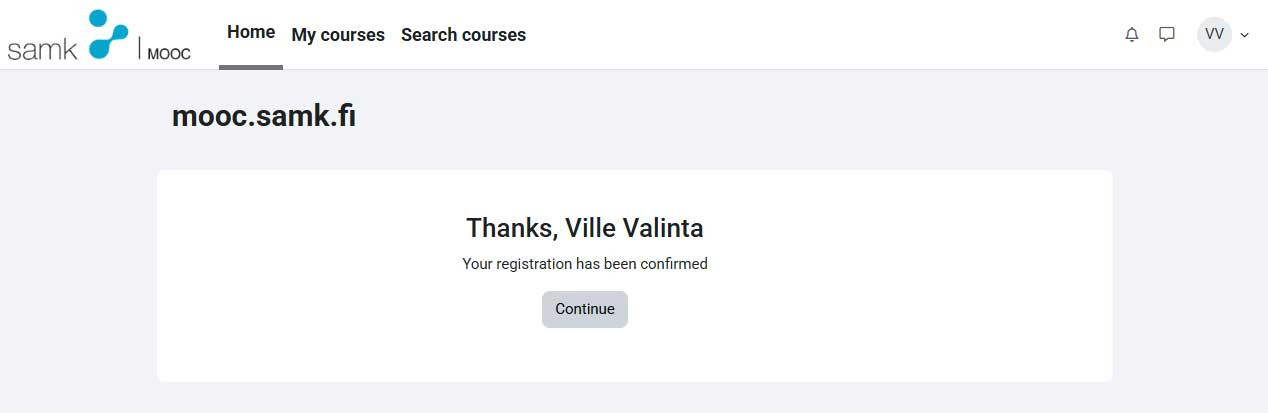
Logging in to MOOC and course area
After you have confirmed your user account you are able to sign into MOOC and simply search for the right course by the name.
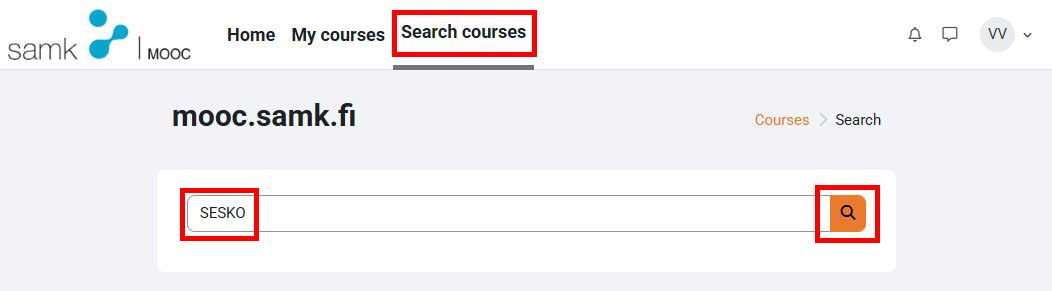
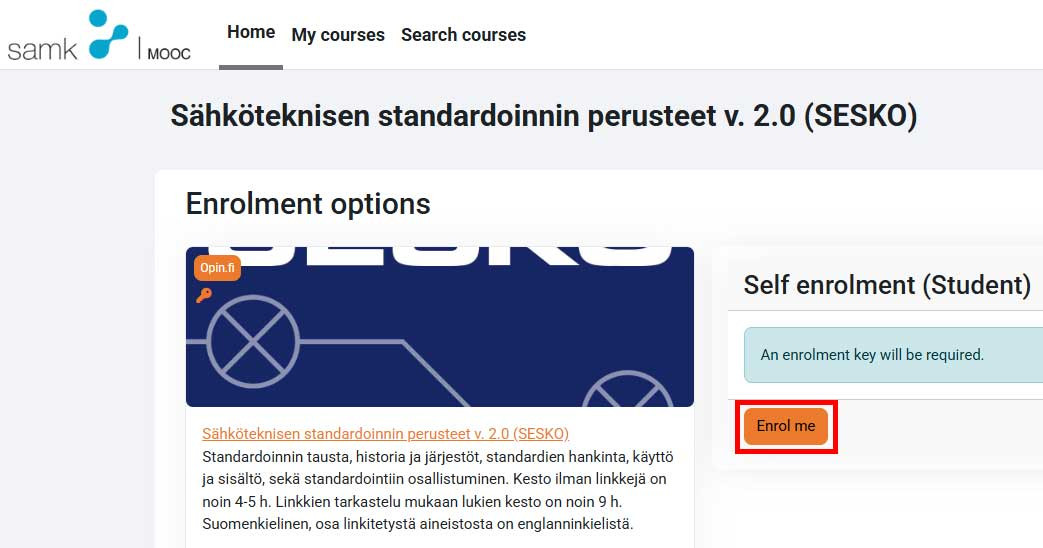
When you have found the correct course click “Enrol” me button and then enter the Enrolment key You have received with application instructions.
1.2. Sign in to MOOC with Google, LinkedIn or Microsoft account
If you have Google, LinkedIn or Microsoft (consumer) account you can use it to sign in to MOOC and you don’t need to create local user account. Go to https://mooc.samk.fi/ and click first Log in link from right upper corner.
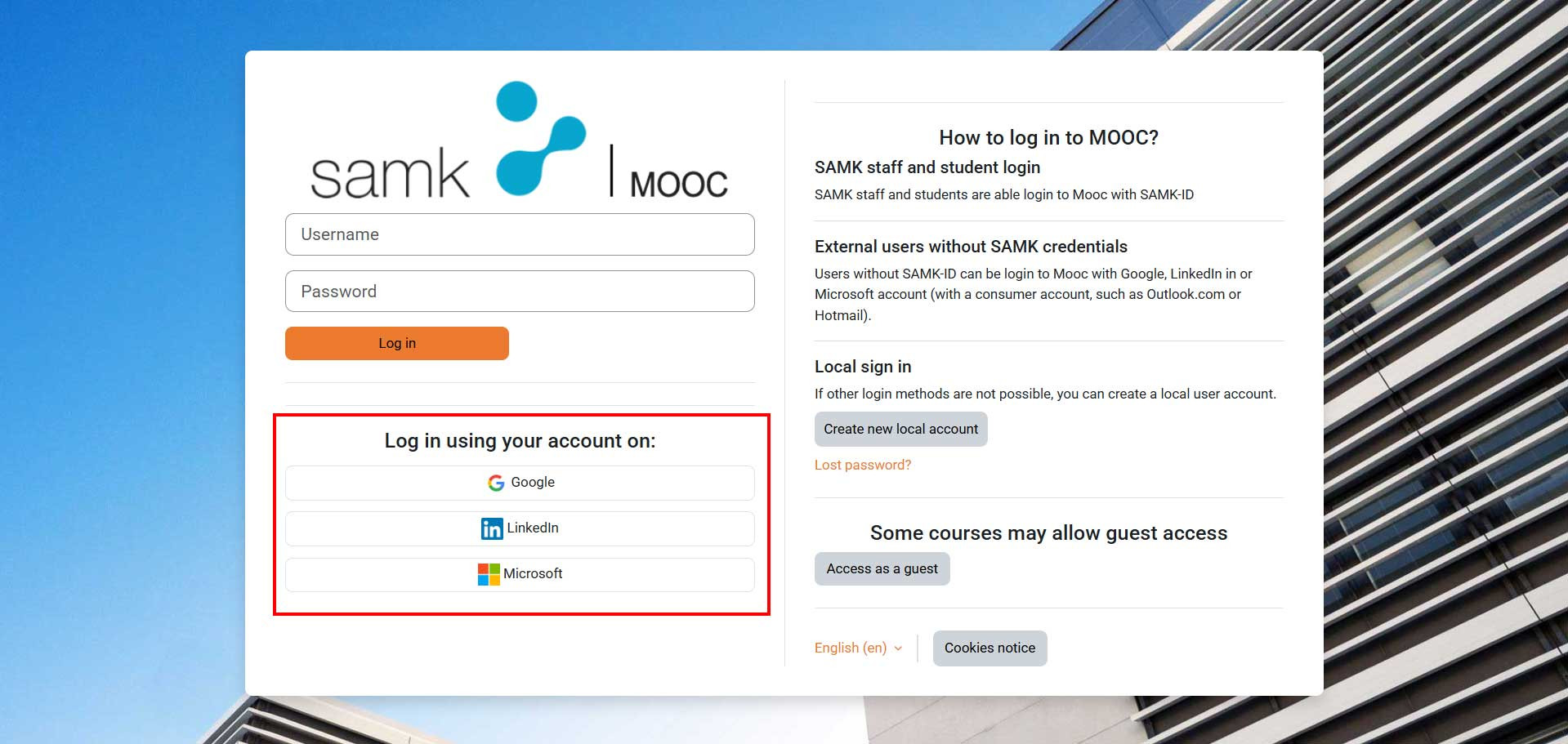
Click the account which you like to use login to MOOC, for example Google. The sign in procedure is same kind of whatever account you like to use. This guide uses a Google account. Write your Google account email address or phone number to Email or Phone field and click Next button.
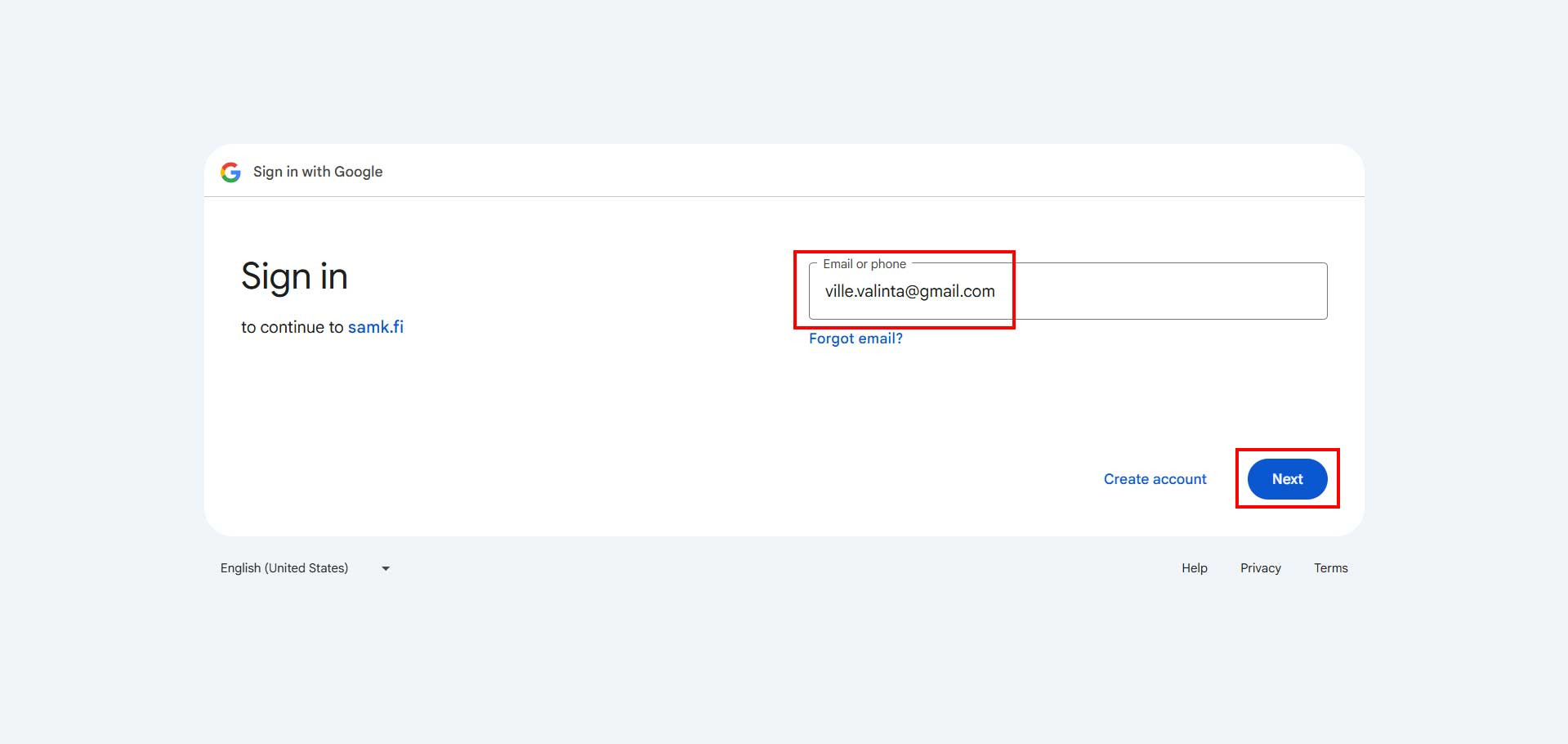
Enter your password to the password field and click Next button and then Continue button.

Next you will get account confirmation email. Check your email and confirm your new account by clicking the link on the email.

When you Login to MOOC first time, you must accept Terms of Service. Read the terms of service carefully and click Yes button.
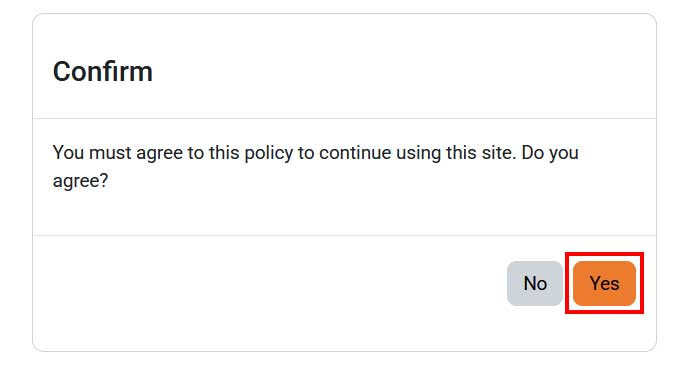
Now your user account is ready, and you can enroll to course.
1.3. Joining to the course area
Most of the courses require registration with a key. If registration with a key is enabled, you will receive a key from the teacher or project manager. Usually, you will get address of the course area from teacher or project manager, but I can also use search to find the course.